


Skip to content

Supporting Telehealth and Remote Access for Allied Health with Microsoft 365

Allied health practices are working in more places than ever before. Practitioners may be delivering telehealth appointments, moving between clinic locations, and accessing records from home or on the road, which makes secure remote access essential. Microsoft 365 gives your team a practical way to collaborate, consult, and protect sensitive health information without adding unnecessary complexity.

The Growing Need for Remote Access

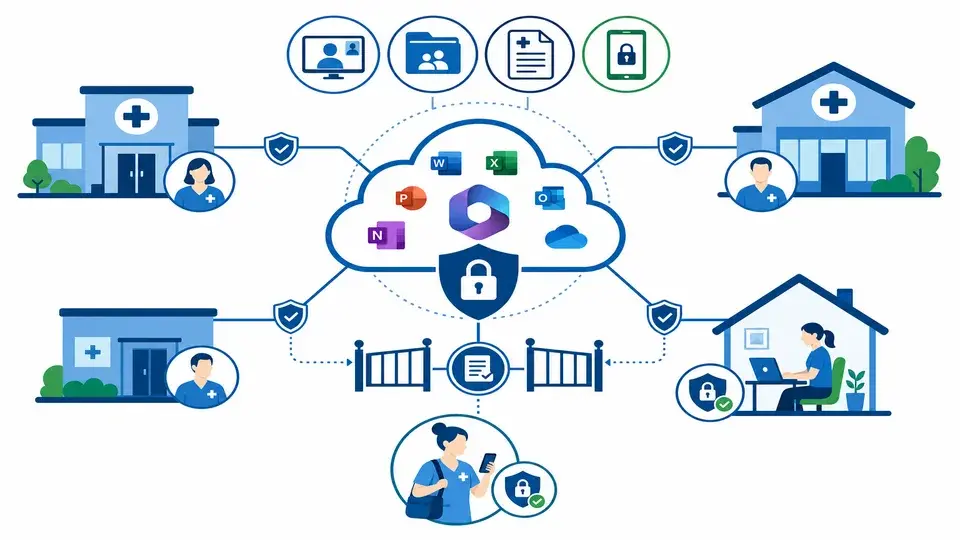
Allied health services are no longer confined to a single office or treatment room. Teams now need to support telehealth, mobile work, shared practitioners, and flexible access to clinical information across multiple locations. That flexibility is valuable, but it also creates security and governance risks if the environment is not configured properly. Microsoft 365 helps practices keep access available while keeping information controlled.

remote access to healthcare is critical in the modern workplace

Why this matters now

Practices that rely on ad hoc file sharing, personal devices, or inconsistent login methods often end up with gaps in access and control. A practitioner should be able to continue care smoothly whether they are in the clinic, working from home, or covering another location. The goal is not simply to make access possible, but to make it reliable, secure, and easy for staff to use well.


Microsoft Teams for Telehealth

Microsoft Teams gives allied health practices a practical telehealth platform with video conferencing, screen sharing, chat, and collaboration tools in one place. When paired with Microsoft Cloud for Healthcare, it can also support appointment scheduling and integration with EHR workflows, helping consultations feel more connected to the rest of the practice. For patients and practitioners, that means a more consistent experience from booking through to follow-up.

Telehealth Consultations

Microsoft Teams gives allied health practitioners a secure way to run telehealth appointments without juggling separate tools. Video, chat, and screen sharing sit in one place, which helps consultations feel smoother for both practitioner and patient. When Microsoft Cloud for Healthcare is added, practices can also connect telehealth more closely with scheduling and clinical workflows.

How it Helps

  • Keeps consultations in a single, familiar platform.
  • Reduces the need to switch between apps during appointments.
  • Supports a more consistent patient experience across clinic, home, and remote sessions.
  • Helps practices extend care without weakening oversight or control.

Screen Sharing for Referrals, Reports, and Care Plans

Screen sharing makes it easier to explain referral details, review reports, and walk through care plans in real time. Instead of sending documents back and forth or trying to describe complex information over the phone, practitioners can show the right content directly during the call. That can improve understanding, reduce follow-up confusion, and keep everyone focused on the same record.

How it Helps

  • Makes it easier to review referrals and reports during the consultation.
  • Improves clarity when discussing care plans with patients or other providers.
  • Reduces back-and-forth after appointments.
  • Helps clinicians work from the most current information.

Chat and Follow-up Communication

Teams chat gives practitioners a quick way to continue conversations after an appointment without losing context in long email threads. It is useful for follow-up questions, internal coordination, and short updates between clinicians or admin staff. When set up properly, chat becomes part of a governed communication flow rather than an unstructured side channel.

How it Helps

  • Keeps follow-up communication linked to the original conversation.
  • Makes internal coordination faster between practitioners and admin teams.
  • Reduces reliance on informal messaging tools.
  • Helps staff stay responsive without sacrificing record discipline.

Integrations with Healthcare Workflows

Microsoft 365 works best when it supports the way the practice already operates. With the right design, Teams can fit into appointment booking, clinical documentation, and wider healthcare workflows instead of sitting apart from them. That creates a better link between communication, administration, and patient care.

How it Helps

  • Connects communication with appointment and clinical processes.
  • Reduces duplication between conversations and records.
  • Helps staff move from consultation to follow-up more efficiently.
  • Supports a more joined-up practice environment across locations.

From Appointment to Follow-up

Teams works best when it is part of a broader workflow, not just a video link. Practices can use it to support the consultation itself, then continue the conversation through secure chat, shared documents, and connected clinical processes. That reduces the friction between patient interaction and record management, which is especially important for busy practices.


Secure Access From Any Device

Remote access only works when it is controlled properly. Conditional access policies and Intune device management help ensure that only approved users on approved devices can reach patient information, whether they are working from the clinic, home, or another location. This gives practices more confidence that flexibility will not come at the expense of privacy or compliance.

Approved devices only

Only approved devices should be able to access patient information and internal Microsoft 365 resources. This helps keep sensitive data off unmanaged phones, laptops, and shared computers.

Role-Based Access

Practitioners should only see the files, records, and tools they need for their role. Role-based access reduces the risk of accidental exposure and keeps permissions aligned to how your practice actually works.

Multi-Factor Authentication

Multi-factor authentication adds an extra verification step when someone signs in. It helps protect accounts even if a password is stolen or reused elsewhere.

Remote wipe for lost or stolen devices

If a device is lost or stolen, remote wipe allows practice data to be removed quickly. That helps reduce the risk of patient information being exposed if the device falls into the wrong hands.

Policy-based access control

Policy-based access control lets you set rules for when, where, and how users can connect. It gives your practice a consistent way to protect information while still allowing flexible remote work.

Security Without Friction

The best security is the kind people can actually live with. Microsolve’s approach is to design controls that protect patient data while still allowing clinicians to move quickly and work naturally. That balance matters in allied health, where the quality of care depends on both access and trust.


How Microsolve Helps

Microsolve helps allied health practices design Microsoft 365 environments that support telehealth, remote access, and secure collaboration without overcomplicating the day-to-day experience. We configure the environment around your workflows, your compliance obligations, and your growth plans, so the system supports the practice instead of slowing it down. The result is a Microsoft 365 setup that is practical, governed, and ready for the realities of modern care delivery.

Assess

We start by reviewing how your current Microsoft 365 environment, devices, access settings, and telehealth workflows are working today. That gives us a clear picture of what is already in place, what is creating risk, and where the biggest improvements can be made.

Design

Next, we design a structure that supports telehealth, remote access, and day-to-day collaboration without adding unnecessary complexity. This includes the right access controls, device rules, and workflow setup so practitioners can work efficiently while patient information stays protected.

Implement, Train and Support

Once the design is agreed, we implement the solution, help your team understand how to use it, and stay involved as your ongoing support partner. That means the system is not only set up correctly, but is also adopted properly and kept working the way it should over time.

Enable secure telehealth with Microsoft 365 - talk to Microsolve

Design remote access that works for your practitioners, protects patient information, and supports the way your practice really operates. Book a guided consultation with our team.

Frequently asked questions

Can Microsoft Teams be used for telehealth appointments?

Yes, Microsoft Teams can support telehealth appointments by providing secure video meetings, screen sharing, and chat in one platform. It works best when it is configured as part of a governed Microsoft 365 environment.

How does Microsoft 365 help protect patient information when staff work remotely?

Microsoft 365 supports protections such as conditional access, multi-factor authentication, and device management through Intune. These controls help ensure patient information is only accessed from approved users and devices.

What happens if a practitioner uses a personal device?

A personal device can still be used, but only if it meets the practice’s security requirements and is managed appropriately. Microsolve helps define the rules for when that is acceptable and what controls must be in place.

Can Microsoft 365 support practices with multiple clinic locations?

Yes, Microsoft 365 is well suited to multi-location practices because it provides consistent access to files, communication tools, and security controls across sites. That consistency makes it easier for practitioners to move between locations without losing access to the information they need.

Does Microsoft 365 replace our clinical software?

No, Microsoft 365 usually complements clinical software rather than replacing it. It supports communication, collaboration, access control, and secure document handling around your core practice systems.

Can Microsolve help set this up for our practice?

Yes, Microsolve can assess your current environment, design the right configuration, and support implementation and ongoing management. The focus is on making remote access secure, usable, and aligned to your practice needs.