



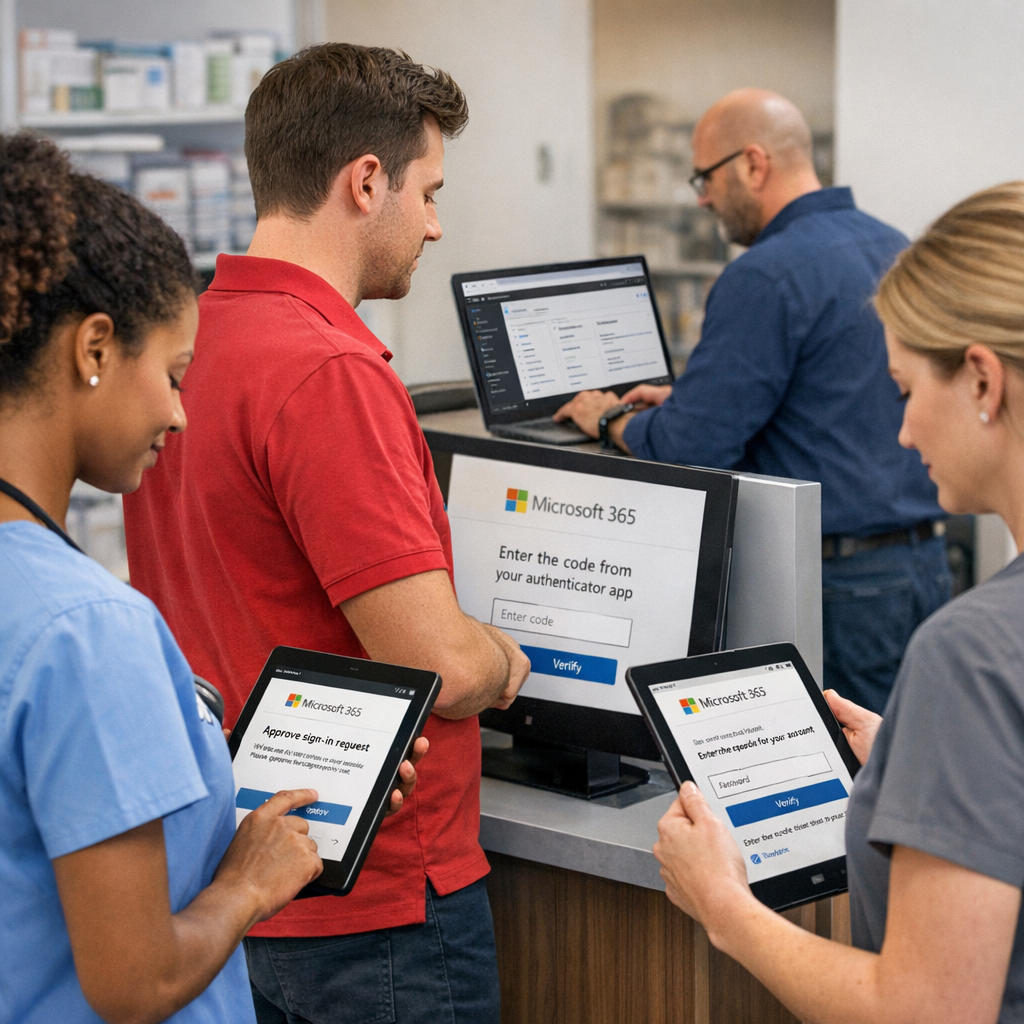
How SMEs can close the shared device security gap in Microsoft 365 using shared device mode, Intune and Conditional Access.
Why shared devices are a blind spot in many Microsoft 365 environments
Shared PCs and tablets are a fact of life in many Australian organisations.
In aged care, healthcare, retail and logistics, staff cycle through shared Windows kiosks, iPads and Android tablets every shift. Yet in a surprising number of environments, these devices are still treated like personal laptops: users stay signed in all day, browsers remember passwords, and there is little separation between one user’s session and the next.
From a security and privacy perspective, that is a serious problem!
A single forgotten sign‑out can expose email, Teams chats, OneDrive files and even clinical or finance systems to the wrong person.
It also undermines the value of modern authentication and Conditional Access - if anyone on a shift can click into a still‑authenticated session, multi‑factor authentication becomes meaningless. The good news is that Microsoft 365 now has mature patterns for locking down shared devices without making frontline work harder.
Shared device mode in Microsoft Entra ID, Intune app protection policies, Shared iPad configurations and Windows kiosk modes are all designed to give you fast, secure, clean sessions on corporate‑owned devices.
Combine this with a 90‑day push to eliminate legacy authentication and fully embrace modern auth (as outlined in Microsoft’s Basic auth retirement guide) & you can close some of the most common real‑world gaps.

Designing policies for sign-in, sign-out, MFA and data protection
Let me be very clear here, this is not an area where technology alone will close the shared device gap! You need clear rules for how sign‑in, sign‑out and multi‑factor authentication will work in the real world.
We've found that starting with a simple goal of each staff member being able to walk up to a device, sign in quickly, complete their task, sign out with a single action, and leave no data behind is easily understood, measured and communicated.
From a policy side, this usually requires three layers:
-
Identity and Multi-Factor Authentication: every frontline worker has a unique Microsoft Entra ID account, and multi‑factor authentication is mandatory wherever Microsoft 365 or clinical/line‑of‑business apps handle personal information. Modern authentication must be enabled, and legacy protocols such as Basic auth disabled; Microsoft’s guidance at Disable Basic Authentication in Exchange Online is the reference.
-
Conditional Access: policies distinguish between shared and dedicated devices. Access from shared devices might require compliant device posture and disallow persistent browser sessions, while dedicated, encrypted laptops get longer session lifetimes. You can also set stricter rules for privileged roles, external locations or risky sign‑ins.
-
Data protection: Intune app protection policies restrict what users can do with data on shared devices – for example, blocking copy‑paste into unmanaged apps, requiring PINs for Microsoft 365 apps, and ensuring app data is wiped when a user signs out or a device is retired.
On iOS and Android, shared device mode combined with Intune policies lets you turn Microsoft Authenticator into the “front door” for a device: staff sign in once and get single sign‑on to participating apps, and a sign‑out event clears tokens across the board.
Microsoft’s overview at Shared device mode overview explains how supported apps use this state. For iOS specifically, Intune also supports Shared iPad configurations where users sign in with a managed Apple ID; see Shared iOS and iPadOS devices for a comparison of patterns.
Windows kiosks benefit from similar thinking - use Entra join and Intune to enforce kiosk or multi‑app mode, disable local storage where possible, and steer all work into browser‑based or client applications that respect central policies. Consistent configuration as code – for example, using Intune templates and security baselines – makes it much easier to keep hundreds of shared devices aligned over time.

Rolling out shared device patterns, training staff and proving compliance
Good shared device security feels almost invisible to frontline staff - and this is THE key to a successful deployment!
Achieving the objective takes thoughtful rollout, training and evidence gathering. Small pilots are our go-to to gain buy-in and immediate feedback from the teams that are most impacted (and have the most to gain)!
Benchmarks on login times, app launch times and details of specific friction points (before, during and after) are key facts that help in understanding of the changes and the improvements.
Regular feedback sessions with clear outcomes and next steps are a must as is accurate documentation on why various design decisions, conditional access policies and application access modes are implemented - these become key for solution maintenance and design of upgrade and future improvements.
Oh, and don't discount the "old school" laminated quick-start card at key congregation points in a facility - we've found that these are often the most referenced document.

The Microsolve shared device Advantage
In short, we know how this operates, how to guide impacted staff through the discovery and testing phase and provide ongoing support for dynamic deployments across a wide range of aged care, healthcare and retail environments.
The advantage of dealing with an experienced partner in this space is speed to outcome and surety of value delivery.
Over time, the investment in a managed shared device environment will turn what used to be an unmanaged blind spot into one of the strongest links in your Microsoft 365 security posture.