



Shared devices are common in busy environments. They help teams move fast. But they also create risk. This article explains how to manage shared devices so people get quick access while data stays protected.
Why shared devices matter
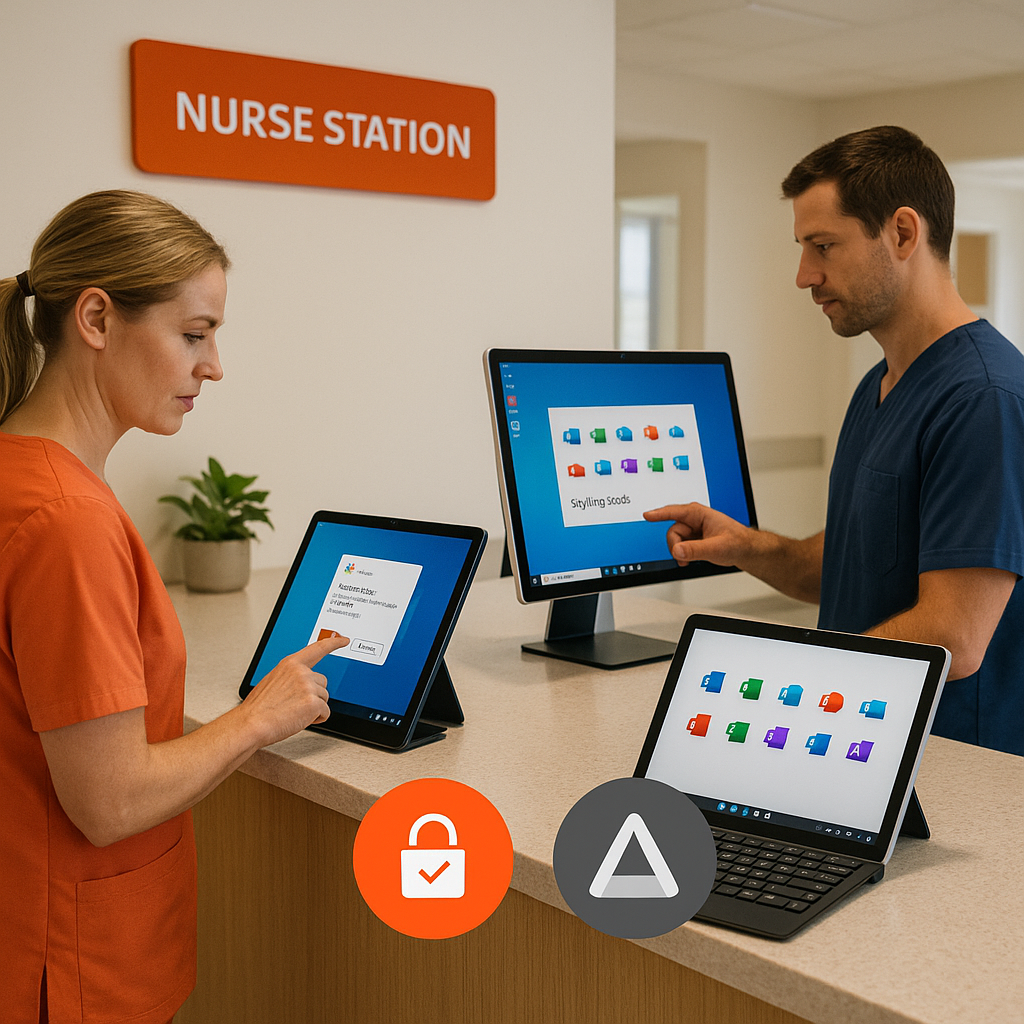
In aged care and healthcare settings, devices are often shared: a tablet at a nurse station, a kiosk PC for shift staff, or a rugged handheld used during rounds.
Sharing improves utilisation and simplifies logistics, but it raises real risks: residual sessions, data leakage between users, and inconsistent sign‑in behaviour that frustrates staff and slows the delivery of care.
The goal MUST always be to give each person fast, secure access to the apps they need - without leaving traces behind or opening doors to attackers - if it is not frictionless, then it's not good enough and "work arounds" will be found.
What “good” looks like
Well-managed shared devices do three things well:
- Start clean for every user. No residual sessions, tokens, or cached data.
- Sign in fast with strong authentication. Think single sign-on with enforced sign-out.
- Enforce policy based on identity, device state, and risk.
Microsoft 365, Intune, and Entra ID make this achievable. Shared device mode, kiosk configurations, and conditional access provide the controls. The result is speed with safety.

Defining the Variables
Over time we have refined a three step process that identifies, categorises and enables a solution to the shared device conundrum!
-
Personas and workflows.
Map who uses which apps, where, and for how long.
- Frontline staff might need quick access to Microsoft Teams, Outlook, and a clinical web app for just a few minutes at a time.
- Administrators working at a shared kiosk may need longer sessions with access to documents in SharePoint. These patterns inform device type (iOS/iPadOS, Android, Windows - or even thin client), sign‑in model, and session timeouts. With Microsoft 365, the pattern to aim for is a combination of shared device mode on supported platforms and enforceable sign‑in/out flows that clean up tokens and app state between users.
- Shared device mode enables single sign‑on and single sign‑out for apps that support the Microsoft Authentication Library in shared scenarios. The overview is documented here: Shared device mode overview. For frontline operations, Microsoft’s guidance on managing shared devices is a useful compass: Shared devices for frontline. These capabilities, paired with strong authentication and disciplined device management, let you balance speed with safety.
-
Device mode and Access model
Effective model selection and configuration design is where the risks disappear (or compound).
- Shared device mode on iOS/iPadOS and Android configures supported apps so each sign‑out clears tokens across the device context - ensuring that the next user experience is clean, fast and distinct from the previous
- For Windows devices, config using assigned access to set into a fixed "kiosk mode". Microsoft Entra and Intune provide the management services, locking down local storage, browser caches and removable media. Identity and access policies are the backbone to enforce multi‑factor authentication universally and apply access policies that considers device state, location, and risk.
- For additional flexibility, a hosted cloud desktop can be launched from a kiosk to provide authorised users with access to back-end functions through group membership and policy deployment.
- For locations where a kiosk is preferred, but the hardware budget is constrained, pairing a thin-client with a cloud hosted desktop delivers excellent results with great integration with the Microsoft security ecosystem.
-
Operate at scale
Consistency is critical - Shared environments succeed only with operational discipline- Use automated enrolment: Apple ADE, Android zero-touch, Windows Autopilot
- Build standard configurations per persona. Develop once. Deploy many.
- Schedule updates in quiet hours to avoid disruption.
- Keep spare devices ready for quick swap-outs.

Benefits and challenges
Benefits are clear:
- Better utilisation and lower device costs.
- Faster access for staff on the move.
- Consistent security controls across all devices.
- Easier onboarding with standard builds.
Challenges are real but manageable:
- Poorly designed sign-in flows frustrate users.
- Inconsistent configurations create gaps.
- Legacy apps may not support modern authentication.
- Operational discipline is required to keep things clean and updated.
The solution is thoughtful design and strong management. Keep it simple. Test with real users. Adjust based on feedback.
Is this for Me?
This approach is a good fit if:
- Your teams share devices across shifts or locations.
- You need fast sign-in and strict data separation between users.
- You want to standardise builds and reduce support overhead.
- You are moving to Microsoft 365 or already use Intune and Entra ID.
- You have compliance or privacy obligations and need auditable controls.
It may not be the right fit if:
- Each staff member has a dedicated device and rarely shares.
- Critical apps cannot support modern authentication or shared modes.
- You lack the capacity to manage devices centrally.
If you sit in the middle, start small. Pilot shared device mode with one persona and a limited app set. Measure sign-in time, error rates, and user feedback. Then expand.

Actionable steps
Small organisations or pilot deployments:
- Start with one device type and one persona.
- Use Intune with a standard configuration profile.
- Enable shared device mode on supported apps.
- Enforce MFA and basic conditional access.
- Pilot for 2–4 weeks and refine.
Growing or multi-site deployments:
- Define 2–3 personas and build standard configurations for each.
- Use Autopilot/ADE/zero-touch for consistent enrolment.
- Implement kiosk mode for Windows where needed.
- Introduce cloud desktops for complex access needs.
- Set update windows and keep a small pool of spare devices.
Enterprise deployments:
- Formalise device standards and lifecycle management.
- Automate enrolment and compliance at scale.
- Use conditional access with risk-based policies.
- Integrate monitoring and reporting for sign-in success and device health.
- Run continuous improvement cycles with user feedback and metrics.
What Now?
The above is not theory for our team or clients - Microsolve have deployed shared device models across multiple verticals with great success.
To understand how this model can solve your shared device concerns, book a call with our team today.